GAMING
Does Steam Download in Sleep Mode?
Does Steam download in sleep mode? Real sleep pauses it. A dark screen on an awake PC still works, and Steam Deck can finish downloads before it sleeps.

You queue a large game, shut the laptop, and expect the install to finish overnight. In the morning the progress bar has not moved, and Steam looks frozen.
Does Steam download in sleep mode? Not while a normal Windows, Mac, or Linux computer is in system sleep. Sleep suspends programs, the disk, and most of the network, so Steam pauses with them. A dark screen on an awake PC is a different case, and the download can keep going.
A Steam Deck can finish active downloads in a display-off low-power mode, then sleep once the queue is empty. This guide sorts those power states, shows how to keep a computer awake with the screen off, and covers the Steam settings that stop a download even when the machine never slept.
A Sleeping PC and Your Steam Download
Steam moves game files only while the client is running, the drive can take writes, and the network can carry large pieces of data. A download is more than one copy step. The client also checks packages, writes them to the drive, unpacks pieces, and lines up the next update.
System sleep is built to stop that work. The operating system parks ordinary desktop programs, and the connection Steam was using goes quiet. Hibernate goes further: the PC stores your session on the drive, then powers down. A shutdown ends the session, so nothing is left running to receive files.
The download does not have to break just because you slept. It stops because the computer stopped doing work. When you wake the PC, Steam is still open, and the network is back, the queue is there to continue.
Which Power State Lets Steam Continue?
Most stalled overnight installs come from mixing up a dark display with a sleeping computer. The display can turn off on a timer while the processor, the disk, and the network stay up. Sleep is the later step, when those parts rest.
Match the result to the state you actually set, not to how dark the room looks.
| Power state | What Steam does |
|---|---|
| Computer awake, screen on | The download continues |
| Screen off, computer awake | The download continues |
| Lock screen or screensaver | The download continues |
| System sleep | The download pauses until wake |
| Hibernate | The download pauses until the PC is on again |
| Shut down | The download stops until Steam is open again |
| Lid closed, and that action is sleep | The download pauses |
| Lid closed, computer set to stay awake | The download continues |
| Steam Deck display-off download | The download continues, then the Deck sleeps when the queue ends |
| Steam Deck in full sleep | The download pauses |
Modern Standby, also called S0 low power idle on many Windows laptops, softens this line without giving Steam a free pass. On battery, network activity during Modern Standby stays available for Remote Desktop and for Microsoft Store apps set to always run in the background. Other network use is cut off for that sleep session.
A Steam download is ordinary desktop traffic, so a install that happens to crawl during Modern Standby is luck, not a plan you should trust. A lid close, the power button, or Sleep in the Start menu still counts as entering sleep. When the install has to finish, keep the machine awake and let only the screen rest.
How to Keep the Computer Awake for Steam
The setting to change is the sleep timer, and Steam can stay as it is. Power settings already split the moment the screen goes dark from the moment the computer sleeps. Turn the screen off, hold sleep off until the queue is done, and plug a laptop in so a low battery does not override the timer.
Windows Screen Timeout and Sleep Timer
Windows 11 keeps both timers on one screen, with one pair of choices for plugged-in use and another pair for battery.
- Plug the computer in, open Steam, and confirm the download is already moving.
- Open Start, then Settings, then System, then Power and battery.
- Open the screen and sleep timeouts in Windows, shown there as Screen, sleep, and hibernate timeouts.
- Set “Turn my screen off after” to a short time on the plugged-in row so the display can rest.
- Set “Make my device sleep after” to Never on the plugged-in row, or to a time longer than the install.
- On a laptop, leave the battery sleep timer short unless you accept the drain, and stay on the charger.
- Leave Steam open until the queue finishes, then put the sleep timer back so the PC can rest on other nights.
Closing the lid is its own path into sleep, alongside the power button and Sleep in the Start menu. If you want the lid shut, set the plugged-in lid action to “Do nothing,” and keep the laptop on a hard surface with room around the vents. The machine is still working, so a bed, a cushion, or a closed bag traps heat around it.
A Mac That Stays Awake With the Display Off
A Mac hides the same split in two places. The sleep and wake settings on a Mac can turn the display off without sending the computer to sleep, which is the state a long Steam install needs.
BLANK THE SCREEN, NOT THE MAC
- Laptop: Open the Apple menu, choose System Settings, click Battery, then Options, and turn on “Prevent automatic sleeping on power adapter when the display is off.”
- Desktop: Open System Settings, click Energy, and turn on “Prevent automatic sleeping when the display is off.”
- Display timer: Open Lock Screen and choose how soon the display turns off on battery and on the power adapter.
Power Nap can check mail, calendar, and other iCloud updates while a Mac is sleeping. Those are short wakes for Apple’s own services, not a running Steam client pulling a game. Leave the prevent-sleep switch on while the Mac is plugged in, keep Steam running, and turn the switch off again when the queue is empty.
Linux Suspend While the Screen Is Dark
Linux follows the same idea, and the labels change with the desktop you use. Look for one control that blanks the screen and a second control for suspend or sleep. Blank the screen on a short timer, and set suspend long enough for the download, or off until Steam finishes.
- Screen blank: This darkens the display and should leave the download running.
- Suspend: This is the sleep equivalent, and it pauses Steam until you wake the PC.
- Lid close: On a laptop, see whether shutting the lid suspends, and change that action while plugged in if you want the lid down.
Use the settings app that came with your distribution for those toggles. When the install is done, turn suspend back on so the computer is not left awake every night.
Does Steam Download in Sleep Mode on Steam Deck?
A handheld makes a dark screen and sleep easy to mix up, because the power button can lead to either one. Full sleep on a Steam Deck pauses downloads, the same way a laptop does. The step before that sleep is the part that changed.
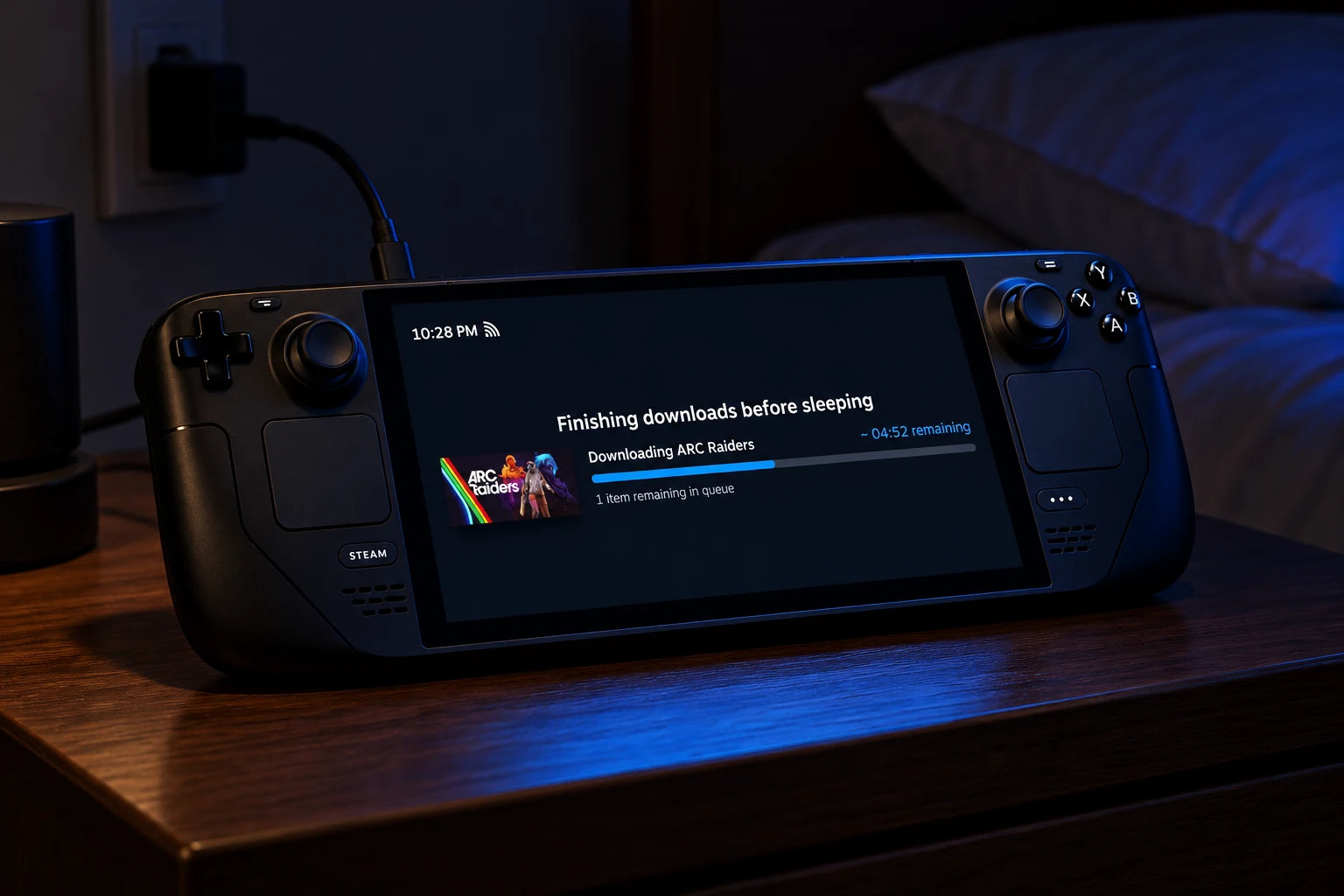
Valve’s display-off low-power download mode finishes the active queue with the screen off, and the handheld sleeps after that queue is done.
Today we are adding a new feature to Steam Deck, enabling it to complete all active downloads in a new display-off low-power mode, before going to sleep.
Valve, Steam Deck news post, November 4, 2025
The mode is on by default while the Deck is plugged in. On battery you turn it on under Settings, then Power. If you use it on battery and the charge falls below 20%, the Deck goes to full sleep and the download pauses, so a wall outlet is the better plan for a large game.
You can enter the mode in two ways. Press the power button while something is downloading and choose Continue to keep going with the screen off. The Deck can also enter the mode after you leave it idle. Press a button or move the handheld and a status screen shows progress, and from there you can wake the Deck fully or leave the screen off.
Some owners still pass along the older rule, that the screen has to stay lit for the whole download. That matched the Deck before this mode. It does not match a Deck whose client includes display-off downloads. Full sleep, whether you pick it from the power menu or the Deck enters it after the queue ends, still pauses anything left unfinished.
Settings That Pause Steam on an Awake PC
A timer fix will not help if Steam itself is holding the queue. An awake computer can still show a bar that will not move, and those limits feel like sleep if you only watch the progress line.
PAUSES THAT ARE NOT SLEEP
- The schedule: Under Steam, then Settings, then Downloads, check “Only auto-update games,” which is how you schedule when Steam auto-updates games.
- A running game: Steam pauses downloads when a game launches unless you check “Allow Downloads During Gameplay” in those same download settings.
- One title’s rule: On the game’s library page, open Manage, then Properties, then Updates, and choose “Always keep this game updated,” “Only update this game when I launch it,” or “High Priority – Always auto-update this game before others.”
- Another update while you play: Each game can also allow or block other downloads during play, separate from the global gameplay switch.
- A speed cap: A bandwidth limit in download settings slows Steam on purpose so the rest of the network stays usable.
Valve’s own example is a window from 12AM to 8AM, which means auto-updates run only between midnight and 8 AM your local time. You can override that window from the Download Manager, and launching the game forces its update right away. If the PC is asleep during those hours, the window passes with nothing downloaded, because the schedule does not turn the computer on.
The same Downloads screen is where you reorder the queue. Open it from the Downloads link at the bottom of the client, from the View menu, or from Library, then Downloads. “Only update this game when I launch it” only delays background updates for that title, and the next time you press Play the game still updates before it starts. If a speed cap looks wrong, check whether Steam is showing bytes per second or bits per second, because the same limit reads differently in each unit.
A Download That Looks Stuck After Wake
When the computer wakes, open the download queue before you decide the install failed. Use the Downloads link at the bottom of the client, View then Downloads, or Library then Downloads. If Steam is still running and the network is back, a transfer that was active before sleep should show in that queue again.
A full shutdown is harsher than sleep. The progress bar can look like it returned to the start even though a large part of the game is already on the disk. Give Steam time to compare those files before you delete the folder and start over.
If the queue shows an error instead of moving, check free space on the drive and confirm the network is up. Clear or raise the bandwidth limit, then retry. Quitting Steam stops the transfer, while minimizing the window leaves the client running, so glance at the menu bar or the taskbar icon before you walk away.
Frequently Asked Questions
Does Hibernate Stop a Steam Download?
Hibernate stops the download. The computer saves your open session to the drive and powers down, so Steam has no running program and no live connection until you turn the machine on again. When you come back, leave the queue alone for a bit so Steam can see files it already wrote, and cancel the install only if it errors after that check.
Can Steam Download While Another Game Is Open?
Only if you turn that permission on. Steam pauses downloads when a game launches, and the switch that changes this is Allow Downloads During Gameplay under Steam, Settings, Downloads. Each game also has its own control for whether other updates may download while that game is running, which is the one to change when a match stutters on a busy connection.
Why Does Steam Speed Jump Around on an Awake PC?
Steam switches between downloading and installing chunks, so the speed line rises and falls even though the computer never slept. A drive that is almost full, an external disk that powers itself down, or a bandwidth cap can flatten that line as well. Check free space and the speed limit before you treat a dip as proof that the PC dozed off.
Does a Lock Screen Stop Steam From Downloading?
No. A lock screen or a screensaver keeps the session signed in and leaves Steam running. The download continues as long as the computer has not entered sleep. Lock the PC when you step away, and let the display turn off on the timer you already set.
What If the Progress Bar Jumps Backward After a Restart?
Wait before you delete the game. A shutdown in the middle of an install can make the progress bar look like it returned to the start. Give Steam time to check files already on the disk, and remove the local files only if the queue shows an error after that check and a fresh retry.
Put the sleep timer back after the queue hits zero, so the computer can rest once the files are in place.


Clay Moulds From the Blyth Hoard Fit Peebles Fittings

Treasury Yields Hit a 24-Year High as AI Joins the Queue

Crew-12 Leaves the ISS With Fedyaev and Adenot Aboard

The Graziers Recall Puts the 60-Day Cheese Rule on Trial

Hugo Chavez’s Hollywood Welcome Meets a Film About Escape

Sons of Behemat Add a Witch and a Middle Rank

Canada Still Clears Mazatlán as the Cartel War Arrives

The FTC Suit That Targets Amazon’s Hidden Ad Floor

Samsung Leads Mistral’s Record European Sovereignty Round

Laepple Automotive Bets on a Vacant Detroit Die Shop
-
 GAMING2 months ago
Sons of Behemat Add a Witch and a Middle Rank
-
 NEWS2 years ago
Canada Still Clears Mazatlán as the Cartel War Arrives
-
 BUSINESS3 months ago
The FTC Suit That Targets Amazon’s Hidden Ad Floor
-
 NEWS2 months ago
Samsung Leads Mistral’s Record European Sovereignty Round
-
 AUTO2 years ago
Laepple Automotive Bets on a Vacant Detroit Die Shop
-
 NEWS3 months ago
Apple’s Foldable iPhone Event Revives the Fingerprint Button
-

 LIFESTYLE2 years ago
Hot Honey: What It Does on UK Restaurant Menus and at Home
-

 LIFESTYLE2 years ago
Women Gym Affairs: Why They Start and What to Do After